
What is personalization?
As per sitecore official documentation –
Personalization is the method for displaying targeted, relevant content to your contacts based on their characteristics and behavior, such as location, gender, or previous visits. With personalization, you can ensure that the right content reaches the right contacts, for example, by showing, hiding, or adjusting content.
What are goals?
Goals are activities that visitors can perform on your website. You create goals to track and measure how visitors engage with the website and campaigns – both online and offline.
Steps to create personalization using goals –
For the purpose of this tutorial, we will apply personalization on Sample Rendering component on Home page. Our aim is to show the Sample Rendering on home page only after user has visited “Demo Page”.
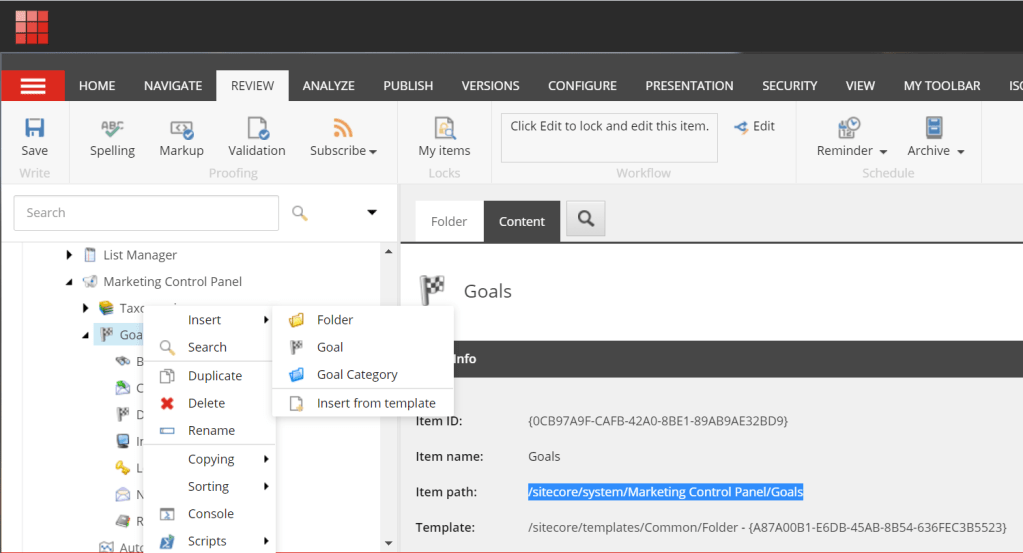
Step 1 – In the sitecore content editor, navigate to “Goals” item on path – /sitecore/system/Marketing Control Panel/Goals. Click “Insert” and select “Goal”. Add a name for the goal and click OK. Here, I am using name “Demo Goal”.
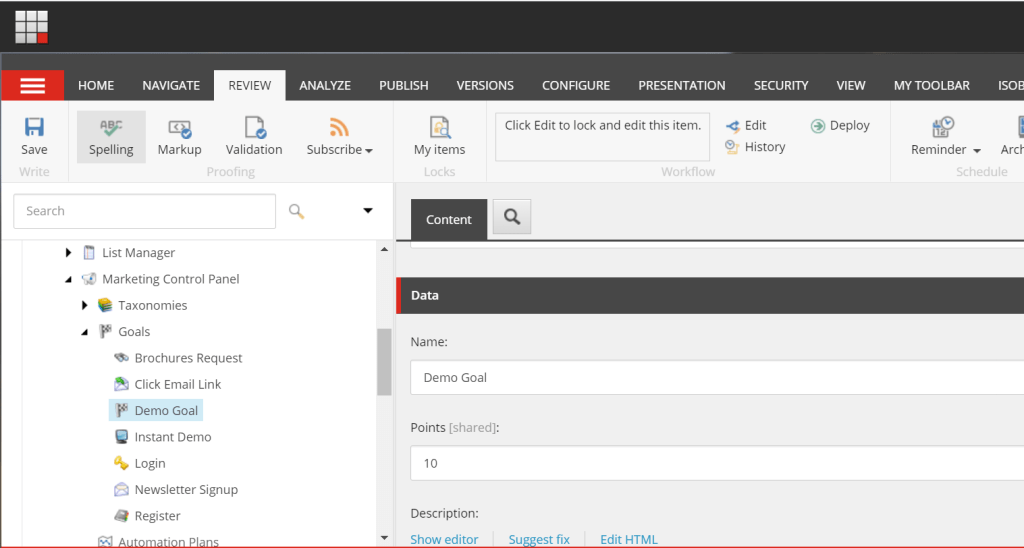
Step 2 – Add values to the fields “Name” and “Point” as shown in below image and click Save.
Step 3 – Deploy the goal so that it can be associated to pages. Go to Review tab in ribbon and select “Deploy”.
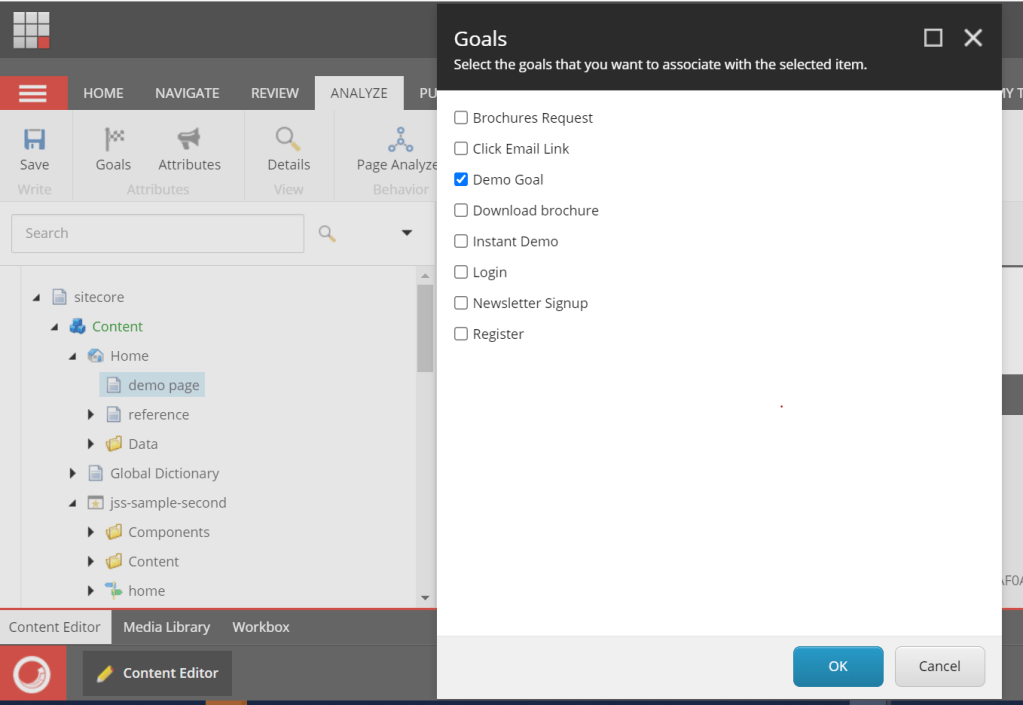
Step 4 – Add the goal to the Demo Page in sitecore. In the sitecore ribbon, go to “Analyze” tab and click on goals button, then select our “Demo Goal” from the list. This ensures that “Demo Goal” will be triggered when we navigate to the Demo Goal page and engagement value 10 will be assigned to the visitor.
Step 5 – Go to presentation details of Home page and choose “Sample Rendering” rendering. On right side, click on “personalize” button. By default the component should be hidden so, click on toggle button to hide the component.
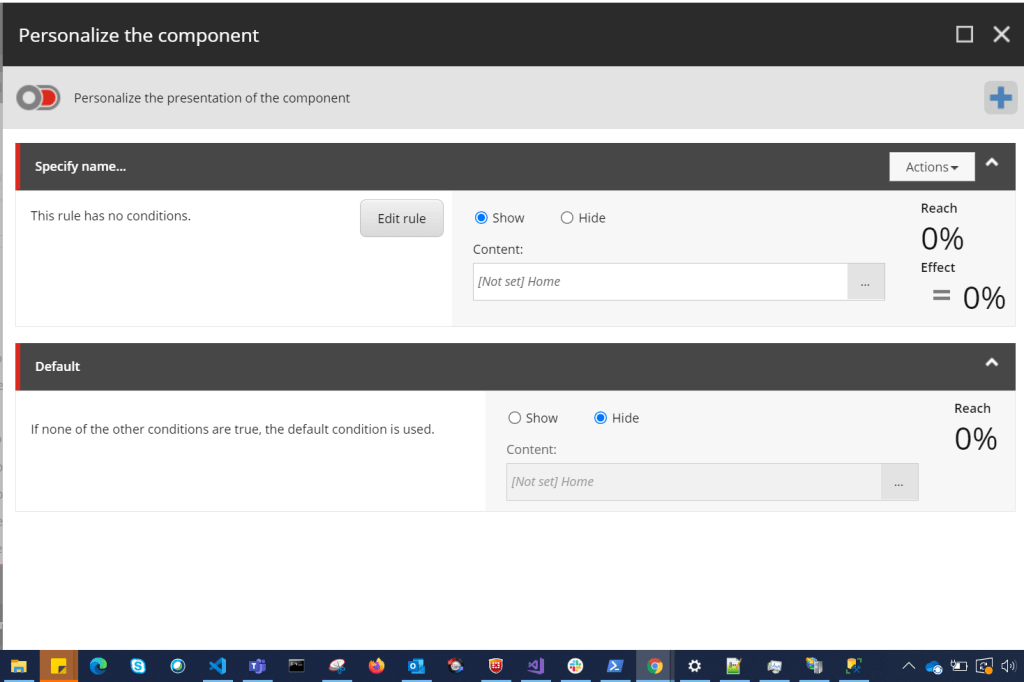
Step 6 – Click on add button to add new personalization. Name it “Demo Goal”. Click on edit rule button , search for goal and select – “where the specific goal was triggered during the current visit”. Click on goal and select “Demo goal”. Save and publish the item.
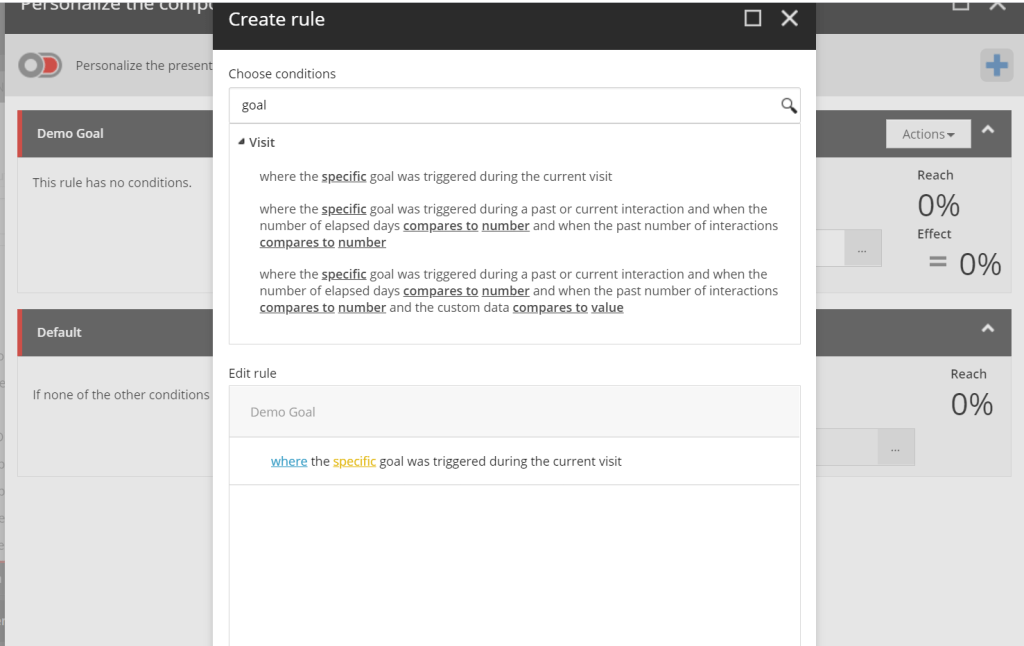

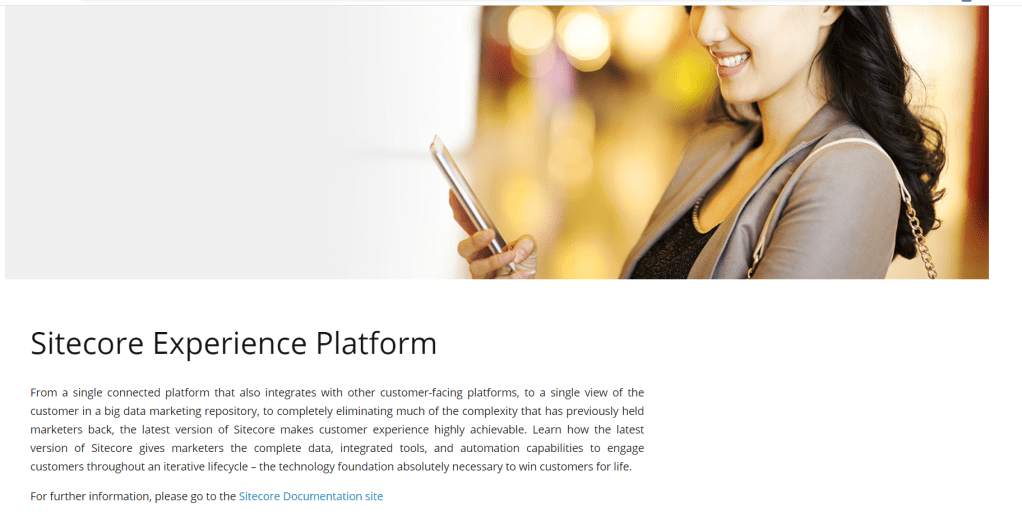
Step 7 – To test our changes, first visit the Home page and verify that sample rendering content is not displayed. After that, browse demo goal page. On browsing demo goal page, engagement value 10 must have been added to your profile. Now, browse the home page again. Sample rendering content is getting displayed now!
Home page (before)

Demo Page

Home Page (After)
Congratulations! You have learnt to apply personalization using goals in sitecore.
 Sitecore Notes